Recently, I collaborated with a colleague to promote our Exadata system to a new Oracle Enterprise Manager (OEM) server. However, we encountered issues when attempting to promote the Power Distribution Unit (PDU). After consulting My Oracle Support (MOS), we decided to address potential bugs by applying the latest PDU patch before proceeding with the promotion to OEM.
Each Oracle Exadata Rack typically contains two PDUs. This redundancy ensures that power is continuously supplied, even if one PDU fails or requires maintenance. During the patching process, it is crucial to update each PDU one at a time to maintain uninterrupted operation of the Exadata system.
The latest PDU version can be found in the document titled “Exadata Database Machine and Exadata Storage Server Supported Versions” (Doc ID 888828.1).

Steps to Patch the PDU
Method 1: Updating Firmware via Web Interface
Connect to the PDU’s web page and check the current firmware version under “Module Info.”

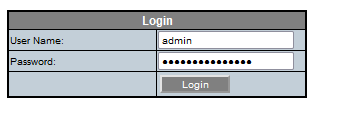
Click on the Net Configuration link and log in as an admin user.
Select the Firmware-Update tab.

Unzip the patch file (e.g., p33900587_200_Generic.zip). You will find a file named MKAPP_V2.x.dl. Click on Browse to upload this file, then click Submit to start updating the firmware.
Once initiated, you will see progress indicating that the firmware is being updated.



After completion, check the PDU firmware version again in “Module Info” to confirm that it has been updated successfully.

Updating PDU firmware is relatively straightforward using PDU web page; however, patience is required when logging into the PDU web page, as it can be slow at times.
Method 2: Updating Firmware Using Command Line Interface
Use scp to securely copy the firmware file from your local machine to the PDU. The command syntax is as follows:
scp -o HostKeyAlgorithms=+ssh-dss -o KexAlgorithms=diffie-hellman-group1-sha1 -o Ciphers=aes128-cbc,3des-cbc MKAppl_V2.12.DL admin@exa01sw-pdub01-m:Firmware.dlEnsure that you replace MKAppl_V2.12.DL with your actual firmware file name .
Be aware that if you are using an admin password, it should not exceed 15 characters; otherwise, only the first 15 characters will be used for login.
Note that when using this method via command line, you will not see any progress indication after firmware file transfer. Once you disconnect from your session, wait for about 5 minutes. Then log back into the PDU’s web interface to check if the firmware version has been updated successfully.
 Oracle DBA Insights